# First Website

### 🎉🎉🎉 It's time to create your very own website! 🎉🎉🎉

## **Table of Contents**
- [Overview](#overview)
  - [Specs](#specs)
  - [The Big 3](#the-big-3-html-css-and-javascript)
- [Lesson Steps](#lesson-steps)
  - [Work Flow](#work-flow-how-to-navigate-through-the-lesson-steps)
  - [TODO 0 : Preview Your Site](#todo-0-preview-your-site-with-live-server)
  - [TODO 1: Update index.html](#todo-1-add-a-title-in-indexhtml)
  - [TODO 2: Create Sections for the Menu and Main Content](#todo-2-create-sections-for-the-menu-and-main-content)
  - [TODO 3: Create Structure for Content](#todo-3-create-structure-for-your-content)
  - [TODO 4: Add Content](#todo-4-add-content)
  - [TODO 5: Add More Content - Interests](#todo-5-add-more-content--interests)
  - [TODO 6: Add an Image](#todo-6-add-an-image)
  - [TODO 7: Navigation and Site Title](#todo-7-add-a-site-title-and-navigation)
  - [TODO 8: Make it Pretty](#todo-8-make-it-pretty-with-css)
  - [TODO 9: Customize CSS](#todo-9-customize-css)
  - [TODO 10: Go Live](#todo-10-go-live)

## **Overview**

🎯 **Goal:** Build and publish your own website on the internet using GitHub Pages! In this project, you’ll:
- Learn how **HTML, CSS, and JavaScript** work together to create a webpage.
- Host your live website on **GitHub Pages**—a free service that lets you share your site with anyone online.
- Add personalized content, such as your interests and photos, to make the website your own.

---

## **Specs**

These are the **requirements** for your website:  
- You will use **HTML** to structure your page, **CSS** to style it, and **JavaScript** for interactivity.  
- The site will feature **a short profile about you**, including your interests, an image, and other personalized content.  
- It will be **hosted on GitHub Pages** and viewable on the internet.  
- You can **update your site anytime**—it will remain live even after the project is complete!

---

## **The Big 3: HTML, CSS, and JavaScript**

To build a webpage, you'll need to use three key tools:

1. **HTML** – 🏗️ **The structure**  
   HTML (Hypertext Markup Language) organizes your website into sections like headings, paragraphs, and images. Think of it as the **foundation of your webpage**.

2. **CSS** – 🎨 **The style**  
   CSS (Cascading Style Sheets) is all about how your site looks—colors, fonts, and layout. It lets you **customize the appearance** of your page to match your personal style.

3. **JavaScript** – ⚙️ **The interactivity**  
   JavaScript is a programming language that makes your website **interactive**. With JavaScript, you can build features like buttons that respond to clicks, animations, or a clock that updates in real time.

---

<table style="width: 80%; margin-left: auto; margin-right: auto; border-collapse: collapse; margin-top: 15px; background-color: #2c2c2c; border: 1px solid #444; border-radius: 8px; overflow: hidden;">
  <tr>
    <th style="text-align: left; padding: 10px; background-color: #444; color: #e2e2e2; border-bottom: 1px solid #666;">
      🎯 How Do They Work Together?
    </th>
  </tr>
  <tr>
    <td style="padding: 10px; color: #e2e2e2;">
      <strong>HTML</strong>: Lays out the content on your site (like a house frame).<br>
      <strong>CSS</strong>: Adds paint, furniture, and decorations (makes the site look good).<br>
      <strong>JavaScript</strong>: Automates and interacts with users (like turning on the lights or locking the doors).
    </td>
  </tr>
</table>

<br>
<br>
<br>

# Lesson Steps

### **Work Flow: How to Navigate Through the Lesson Steps**

🎯 **Goal:** Follow the steps in this lesson to build and customize your website one step at a time.

---

### Step-by-Step Work Flow

1. 📂 **Open the `index.html` file** in your codespace to get started.
   
2. **Look for TODO sections** in the README:  
   - Each **TODO** has instructions for **what you need to do** next.
   - These steps will tell you **where to place new code** inside the existing tags.

3. **Follow the instructions carefully** for each TODO:  
   - Pay attention to where code should go (inside `<head>` or `<body>`).  
   - If a step asks you to **add or remove code**, **only make those changes**—don’t change anything else unless instructed.

4. 🖥️ **Preview your site regularly using Live Server** to see how your changes affect the website.

5. **Build gradually**:  
   - Each TODO builds on the previous one, so **complete them in order**.  
   - Take your time to **double-check your code** before moving on to the next step.

---

<table style="width: 80%; margin-left: auto; margin-right: auto; border-collapse: collapse; margin-top: 15px; background-color: #2c2c2c; border: 1px solid #444; border-radius: 8px; overflow: hidden;">
  <tr>
    <th style="text-align: left; padding: 10px; background-color: #444; color: #e2e2e2; border-bottom: 1px solid #666;">
      💡 Key Reminders
    </th>
  </tr>
  <tr>
    <td style="padding: 10px; color: #e2e2e2;">
      - 📖 Read each step closely before adding any code.<br>
      - 🎯 Only add code if a TODO step tells you to.<br>
      - 🖥️ Preview frequently to make sure everything is working correctly.
    </td>
  </tr>
</table>

---

### ✅ **Check Your Work!**  
- **After each TODO**, double-check your code to ensure it matches the examples.
- If you encounter issues, **preview your site** using Live Server to troubleshoot.

<br>
<br>
<br>
<br>
<br>

## **TODO 0: Preview Your Site with Live Server**

🎯 **Goal:** Preview your site in the browser to see how it looks and behaves as you make changes.

---

### Step-by-Step Instructions

There are two ways to open your project with **Live Server**:

---

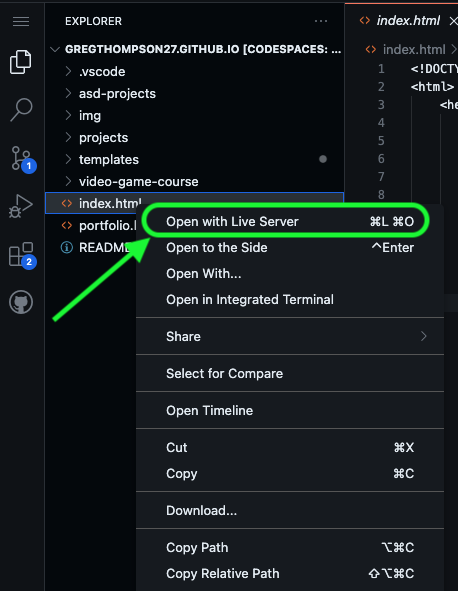
#### **Option 1: Right-Click Method**

1. 📂 **Find the `index.html` file** in the file tree on the left side of your codespace.
2. **Right-click on `index.html`** and select **“Open with Live Server.”**

<div style="text-align: center;">
  <img src="https://raw.githubusercontent.com/OperationSpark/images/refs/heads/master/hs-curriculum/fsd-projects/first-website/open-with-live-server.png" alt="Right-click 'Open with Live Server'" style="max-width: 250px;">
</div>

---

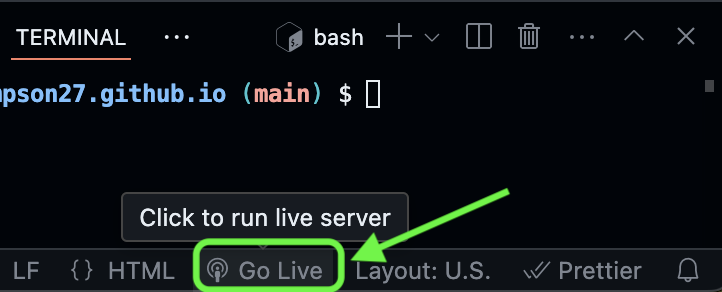
#### **Option 2: Go Live Button in the Bottom Panel**

1. **Look at the bottom-right corner** of your codespace.  
2. **Click the “Go Live” button** to launch Live Server.

<div style="text-align: center;">
  <img src="https://raw.githubusercontent.com/OperationSpark/images/refs/heads/master/hs-curriculum/fsd-projects/first-website/go-live-button.png" alt="Go Live button in GitHub Codespaces" style="max-width: 300px;">
</div>

---

<table style="width: 80%; margin-left: auto; margin-right: auto; border-collapse: collapse; margin-top: 15px; background-color: #2c2c2c; border: 1px solid #444; border-radius: 8px; overflow: hidden;">
  <tr>
    <th style="text-align: left; padding: 10px; background-color: #444; color: white; border-bottom: 1px solid #666;">
      💡 Why Use Live Server?
    </th>
  </tr>
  <tr>
    <td style="padding: 10px; color: #ccc;">
      Live Server allows you to instantly preview your website as you edit the code. It automatically refreshes the browser every time you update your code, so you can see changes right away without needing to reload manually.
    </td>
  </tr>
</table>

---

<br>

### ✅ **Check Your Work!**  
- **After launching Live Server**, your browser should open a new tab with your site.
- At the beginning of this project, you will have a completely blank webpage. You will add content to your page as you work through the project.

<br>
<br>
<br>
<br>

## **TODO 1: Add a Title in index.html**

🎯 **Goal:** Update the `<title>` element so your website has a unique and meaningful title. This title will appear in the browser tab when someone visits your site.

---

### Step-by-Step Instructions

1. 🔍 **Find the file tree**

   - Look to the **left side of your codespace** and find the list of project files and folders.

2. **Open the `index.html` file**

   - 📂 Inside the file tree, **click on `index.html`** to open it.

3. 🔍 **Locate the `<title>` element inside the `<head>` element**

4. **Update the text inside `<title>`**
   - **Replace** the text that says `CHANGE ME` with a creative name for your website.

Your updated code should look like this:

```html
<head>
  <title>My Awesome Website</title>
</head>
```

---

<table style="width: 80%; margin-left: auto; margin-right: auto; border-collapse: collapse; margin-top: 15px; background-color: #2c2c2c; border: 1px solid #444; border-radius: 16px; overflow: hidden;">
  <tr>
    <th style="text-align: left; padding: 10px; background-color: #444; color: white; border-bottom: 1px solid #666;">
      💡 Why Update the <code>&lt;title&gt;</code>?
    </th>
  </tr>
  <tr>
    <td style="padding: 10px; color: #ccc;">
      The <code>&lt;title&gt;</code> defines the name shown in the browser tab when someone visits your website. A good 
      title helps visitors know what your site is about and makes your work look more polished.
    </td>
  </tr>
</table>

---

<br>

### ✅ **Check Your Work!**

- **Preview your site** using **Live Server** to see the new title in the browser tab.
- The title will appear in the tab at the very top of the browser.

<br>
<br>
<br>
<br>

## **TODO 2: Create Sections for the Menu and Main Content**

🎯 **Goal:** Organize your webpage by adding two key sections — a **navigation menu** and a **main content area**. You’ll do this by placing `<nav>` and `<main>` elements inside the `<div id="all-contents">` element.

---

### Step-by-Step Instructions

1. 🔍 **Locate the `<div id="all-contents">` element**

   - Inside `index.html`, find this part of the code:
     ```html
     <!-- All content goes here -->
     <div id="all-contents">

     </div>
     ```

2. **Place the `<nav>` and `<main>` elements inside the `<div id="all-contents">` element**

   - Your code should now look like this:

     ```html
     <div id="all-contents">
       <nav>

       </nav>

       <main>

       </main>
     </div>
     ```

---

<table style="width: 80%; border-collapse: collapse; margin-top: 15px; margin-left: auto; margin-right: auto; background-color: #2c2c2c; border: 1px solid #444; border-radius: 8px; overflow: hidden;">
  <tr>
    <th style="text-align: left; padding: 10px; background-color: #444; color: white; border-bottom: 1px solid #666;">
      💡 What’s the Purpose of <code>&lt;nav&gt;</code> and <code>&lt;main&gt;</code>?
    </th>
  </tr>
  <tr>
    <td style="padding: 10px; color: #ccc;">
      <strong>&lt;nav&gt;</strong>: Holds links to other parts of your website (like a menu).<br>
      <strong>&lt;main&gt;</strong>: Contains the primary content visitors will see. Separating these sections helps 
      organize your code and makes it easier to style with CSS.
    </td>
  </tr>
</table>

---

<br>

### ✅ **Check Your Work!**

- Make sure the `<nav>` and `<main>` elements are **inside the `<div id="all-contents">` element**.

<br>
<br>
<br>
<br>

## **TODO 3: Create Structure for Your Content**

🎯 **Goal:** Inside the `<main>` element, organize your page into two sections — a sidebar and a content area.

---

### Step-by-Step Instructions

1. 🔍 **Find the `<main>` element inside `index.html`**

   - Look for this code snippet:
     ```html
     <main>

     </main>
     ```

2. **Place two `<div>` elements inside the `<main>` element**.

3. Add a **`class="sidebar"` attribute** to the first opening `<div>` tag and a **`class="content"` attribute** to the second opening `<div>` tag

   - Your updated code should look like this:

     ```html
     <main>
       <!-- Sidebar section -->
       <div class="sidebar">

       </div>

       <!-- Content section -->
       <div class="content">

       </div>
     </main>
     ```

---

<table style="width: 80%; border-collapse: collapse; margin-top: 15px; margin-left: auto; margin-right: auto; background-color: #2c2c2c; border: 1px solid #444; border-radius: 8px; overflow: hidden;">
  <tr>
    <th style="text-align: left; padding: 10px; background-color: #444; color: white; border-bottom: 1px solid #666;">
      💡 Why Use a Sidebar and Content Section?
    </th>
  </tr>
  <tr>
    <td style="padding: 10px; color: #ccc;">
      A sidebar is great for links, images, or secondary content. The content section holds the main information that your visitors will interact with. Separating these makes it easier to style each section individually.
    </td>
  </tr>
</table>

---

<br>

### ✅ **Check Your Work!**

- Ensure both `<div>` elements are **inside the `<main>` element**.

<br>
<br>
<br>
<br>

## **TODO 4: Add Content**

🎯 **Goal:** Add your name and position to the content section inside the `<div class="content">` element.

---

### Step-by-Step Instructions

1. 🔍 **Find the `<div class="content">` element**

   - Look for this part of the code:
     ```html
     <div class="content">

     </div>
     ```

2. **Add an `<h2>` element inside the `<div class="content">` element**. The `<h2>` element should contain your name.

3. **Add a `<p>` element inside the `<div class="content">` element** under the `<h2>` element. The `<p>` element should contain your position or job title (like `Student at Unicorn High` or `Editor Extraordinaire at DHS Yearbook`).

   - Your updated code should look like this:
     ```html
     <div class="content">
       <h2>Halle Bot</h2>
       <p>Mascot at Operation Spark</p>
     </div>
     ```

---

<table style="width: 80%; border-collapse: collapse; margin-top: 15px; margin-left: auto; margin-right: auto; background-color: #2c2c2c; border: 1px solid #444; border-radius: 8px; overflow: hidden;">
  <tr>
    <th style="text-align: left; padding: 10px; background-color: #444; color: white; border-bottom: 1px solid #666;">
      💡 Why Add Your Name and Position?
    </th>
  </tr>
  <tr>
    <td style="padding: 10px; color: #ccc;">
      This personal touch makes your website feel more professional and unique. It also gives visitors insight into who you are.
    </td>
  </tr>
</table>

---

<br>

### ✅ **Check Your Work!**

- **Preview your site** using **Live Server**.
- Verify that your basic page looks like the image below before moving on.

<br>

<div style="text-align: center;">
  <img src="https://raw.githubusercontent.com/OperationSpark/images/refs/heads/master/hs-curriculum/fsd-projects/first-website/first-shot.png" alt="Right-click 'Open with Live Server'" style="max-width: 300px;">
</div>

<br>
<br>
<br>
<br>

## **TODO 5: Add More Content – Interests**

🎯 **Goal:** Add a list of your interests to personalize your site and practice using HTML lists.

---

### Step-by-Step Instructions

1. 🔍 **Find the `<div class="content">` element**  
   - Look for this section in your code:
     ```html
     <div class="content">

     </div>
     ```

2. **Create a new `<div>` for the Interests section**  
   - **Inside the `<div class="content">` element**, add a new `<div>` element with an `id="interests"` attribute:
     ```html
     <div id="interests">

     </div>
     ```

3. **Add a heading inside the Interests div**  
   - **Inside the `<div id="interests">` element**, add an `<h3>` element with the text `Interests`:
     ```html
     <h3>Interests</h3>
     ```

4. **Create an unordered list for your interests**  
   - Below the `<h3>` tag, add a `<ul>` element:
     ```html
     <ul>

     </ul>
     ```

5. **Add three list items for your interests**  
   - Inside the `<ul>` element, add three `<li>` elements to list your interests.
   - Inside each of the `<li>` elements, include one of your interests, such as `Coding`, `Football`, or `Sleeping`.

After completing this TODO, your updated `<div class="content">` element should look like this:

```html
<div class="content">
  <h2>Halle Bot</h2>
  <p>Mascot at Operation Spark</p>

  <!-- Interests section -->
  <div id="interests">
    <h3>Interests</h3>
    <ul>
      <li>Coding</li>
      <li>Running</li>
      <li>Baking Cupcakes</li>
    </ul>
  </div>
</div>
```

---

<table style="width: 80%; margin-left: auto; margin-right: auto; border-collapse: collapse; margin-top: 15px; background-color: #2c2c2c; border: 1px solid #444; border-radius: 8px; overflow: hidden;">
  <tr>
    <th style="text-align: left; padding: 10px; background-color: #444; color: white; border-bottom: 1px solid #666;">
      💡 Why Use Lists?
    </th>
  </tr>
  <tr>
    <td style="padding: 10px; color: #ccc;">
      Lists help organize information neatly on your website. You’ll often use lists in web development for things like navigation menus, to-do lists, and item descriptions.
    </td>
  </tr>
</table>

---

<br>

### ✅ **Check Your Work!**  
- Ensure the `<div id="interests">` section is **inside the `<div class="content">` element**.  
- **Preview your site** using Live Server. You should see a list of interests below your name and title.

<br>
<br>

🎯 **You're halfway there! Keep it up!**

<br>
<br>

## **TODO 6: Add an Image**

🎯 **Goal:** Add a personal or meaningful image to the sidebar section.

---

### Step-by-Step Instructions

1. 🔍 **Find the `<div class="sidebar">` element**  
   - Look for this part of the code inside the `<main>` element:
     ```html
     <div class="sidebar">

     </div>
     ```

2. **Add an `<img>` tag inside the `<div class="sidebar">` element**
   - Remember that `<img>` elements do not need closing tags!

3. **Add a `class="sidebar-img"` attribute and `src="CHANGE_ME"` attribute** to your `<img>` element
   - Your updated code should look like this:
     ```html
     <div class="sidebar">
       <img class="sidebar-img" src="CHANGE_ME">
     </div>
     ```

4. **Get a good image URL from Google**  
   - **Open Google Images** and search for an image that fits your website.  
   - **Right-click the image** you want to use, then **select "Copy image address."**

<div style="text-align: center;">
  <img src="https://raw.githubusercontent.com/OperationSpark/images/refs/heads/master/hs-curriculum/fsd-projects/first-website/copy-image-address.png" alt="Copy Image Address from Google" style="max-width: 250px;">
</div>

<br>

5. **Paste the copied URL into the `src` attribute** of the `<img>` tag.  
   - Example:
     ```html
     <div class="sidebar">
       <img class="sidebar-img" src="https://example.com/image.jpg">
     </div>
     ```

---

<table style="width: 80%; margin-left: auto; margin-right: auto; border-collapse: collapse; margin-top: 15px; background-color: #2c2c2c; border: 1px solid #444; border-radius: 8px; overflow: hidden;">
  <tr>
    <th style="text-align: left; padding: 10px; background-color: #444; color: white; border-bottom: 1px solid #666;">
      💡 Why Add an Image?
    </th>
  </tr>
  <tr>
    <td style="padding: 10px; color: #ccc;">
      Images make your website more engaging. They also help practice using the <code>&lt;img&gt;</code> tag and working with attributes like <code>src</code>.
    </td>
  </tr>
</table>

---

<br>

### ✅ **Check Your Work!**

- Ensure the image is **inside the `<div class="sidebar">` element**.
- **Preview your site** using **Live Server**. If the image doesn’t load, try checking the URL or replacing it with a different link.
- Check that your site looks like the image below before moving on.

<br>

<div style="text-align: center;">
  <img src="https://raw.githubusercontent.com/OperationSpark/images/refs/heads/master/hs-curriculum/fsd-projects/first-website/second-shot.png" style="max-width: 200px;">
</div>

<br>
<br>
<br>
<br>

## **TODO 7: Add a Site Title and Navigation**

🎯 **Goal:** Give your site a title and create a navigation menu to help visitors move between pages.

---

### Step-by-Step Instructions

1. 🔍 **Find the `<nav>` element inside `index.html`**  
   - Look for the following section in your code:
     ```html
     <nav>

     </nav>
     ```

2. **Add a title inside the `<nav>` element**  
   - **Place an `<h1>` element** inside `<nav>`. Between the opening and closing `<h1>` tags, type the title of your website:
     ```html
     <h1>Your Name's Amazing Website</h1>
     ```

3. **Create an unordered list for your navigation menu**  
   - **Below the `<h1>` element**, add a `<ul id="nav-ul">` element:
     ```html
     <ul id="nav-ul">

     </ul>
     ```

4. **Add two list items for the menu**  
   - **Inside the `<ul>` element**, add the following two `<li>` elements:

     1. One to link to your home page

        ```html
        <li class="nav-li">
          <a href="index.html">Home</a>
        </li>
        ```

     2. Another to link to your portfolio page

        ```html
        <li class="nav-li">
          <a href="portfolio.html">Portfolio</a>
        </li>
        ```

After completing this TODO, your `<nav>` section should look like this:
```html
<nav>
  <h1>Your Name's Amazing Website</h1>
  <ul id="nav-ul">
    <li class="nav-li">
      <a href="index.html">Home</a>
    </li>
    <li class="nav-li">
      <a href="portfolio.html">Portfolio</a>
    </li>
  </ul>
</nav>
```

---

<table style="width: 80%; margin-left: auto; margin-right: auto; border-collapse: collapse; margin-top: 15px; background-color: #2c2c2c; border: 1px solid #444; border-radius: 8px; overflow: hidden;">
  <tr>
    <th style="text-align: left; padding: 10px; background-color: #444; color: white; border-bottom: 1px solid #666;">
      💡 Why Add a Navigation Menu?
    </th>
  </tr>
  <tr>
    <td style="padding: 10px; color: #ccc;">
      A navigation menu makes it easy for visitors to move between different parts of your site. It’s also a great way to learn how to link pages together using anchor tags (<code>&lt;a&gt;</code>).
    </td>
  </tr>
</table>

---

<br>

### ✅ **Check Your Work!**  
- Make sure the `<h1>` and `<ul>` elements are **inside the `<nav>` element**.  
- **Preview your site** using **Live Server** to ensure your title and menu appear on the site.

<br>
<br>
<br>
<br>

## **TODO 8: Make It Pretty with CSS**

🎯 **Goal:** Add a CSS stylesheet to style your website.

---

### Step-by-Step Instructions

1. 🔍 **Find the `<head>` element inside `index.html`**

2. **Add a `<link>` tag inside the `<head>` element**

   - Note that the link tag does not require a closing tag

3. **Add a `rel="stylesheet"` attribute and `href="style.css"` attribute** inside the `<link>` tag

   - Your code should now look like this:
     ```html
     <head>
       <title>Your Name's Website</title>
       <link rel="stylesheet" href="style.css" />
     </head>
     ```

4. **Open the `style.css` file** and add the following CSS rules:
   ```CSS
   body {
       background: rgb(125, 198, 205);
       color: rgb(45, 45, 45);
       padding: 10px;
       font-family: Arial, sans-serif;
   }
   
   #all-contents {
       max-width: 800px;
       margin: auto;
   }
   
   /* navigation menu */
   nav {
       background: rgb(239, 80, 41);
       margin: 0 auto;
       display: flex;
       padding: 10px;
   }
   
   h1 {
       display: flex;
       align-items: center;
       color: white;
       flex: 1;
       margin: 0;
   }
   
   #nav-ul {
       list-style-type: none;
       margin: 0;
       padding: 0;
       display: flex;
   }
   
   .nav-li {
       display: inline-block;
       padding: 0 10px;
   }
   
   a {
       text-decoration: none;
       color: #fff;
   }
   
   /* main container area beneath menu */
   main {
       background: rgb(245, 238, 219);
       display: flex;
       margin-top: 20px;
   }
   
   .sidebar {
       margin-right: 25px;
       padding: 10px;
   }
   
   .sidebar-img {
       width: 200px;
   }
   
   .content {
       flex: 1;
       padding: 15px;
   }
   
   /* interests section styles */
   #interests {
       border: 4px silver ridge;
       padding: 8px;
       margin-top: 20px;
   }
   
   h2, h3 {
       margin: 0px;
   }
   ```

---

<table style="width: 80%; margin-left: auto; margin-right: auto; border-collapse: collapse; margin-top: 15px; background-color: #2c2c2c; border: 1px solid #444; border-radius: 8px; overflow: hidden;">
  <tr>
    <th style="text-align: left; padding: 10px; background-color: #444; color: white; border-bottom: 1px solid #666;">
      💡 Why add CSS to a website?
    </th>
  </tr>
  <tr>
    <td style="padding: 10px; color: #ccc;">
      Adding CSS makes your website look unique and reflects your personal style. It also helps you explore how small changes in CSS can dramatically alter the appearance of a page.
    </td>
  </tr>
</table>

---

### ✅ **Check Your Work!**

- **Preview your site** using **Live Server** to see your new styles in action.

<br>
<br>
<br>
<br>
<br>

## **TODO 9: Customize CSS**

🎯 **Goal:** Add personal touches to your CSS to make the website uniquely yours.

---

### Step-by-Step Instructions

1. 🔍 **Find the `nav` CSS selector inside `style.css`**

   - Look for this code snippet:
     ```css
     nav {
       background: rgb(239, 80, 41);
       margin: 0 auto;
       display: flex;
       padding: 10px;
     }
     ```

2. **Add a `margin-bottom: 20px` property to create space below the menu**

   - Your updated CSS should look like this:
     ```css
     nav {
       background: rgb(239, 80, 41);
       margin: 0 auto;
       display: flex;
       padding: 10px;
       margin-bottom: 20px;
     }
     ```

3. **Experiment with colors**

   - Update the colors throughout the CSS file to match your style. For example:

     ```css
     body {
       background: #2a2a2a;
       color: #ddd;
     }

     nav {
       background: #333;
     }

     a {
       color: #ffa500;
     }
     ```

---

<table style="width: 80%; margin-left: auto; margin-right: auto; border-collapse: collapse; margin-top: 15px; background-color: #2c2c2c; border: 1px solid #444; border-radius: 8px; overflow: hidden;">
  <tr>
    <th style="text-align: left; padding: 10px; background-color: #444; color: white; border-bottom: 1px solid #666;">
      💡 Why Customize CSS?
    </th>
  </tr>
  <tr>
    <td style="padding: 10px; color: #ccc;">
      Customizing CSS makes your website look unique and reflects your personal style. It also helps you explore how small changes in CSS can dramatically alter the appearance of a page.
    </td>
  </tr>
</table>

---

<br>

### ✅ **Check Your Work!**

- **Preview your site** using **Live Server** to see your new styles in action.

<br>
<br>
<br>
<br>

## **TODO 10: Go Live**

🎯 **Goal:** Host your website online using **GitHub Pages**.

---

### Step-by-Step Instructions

1. **Open the terminal in your codespace**

   - If the terminal isn’t visible, click the **Hamburger Menu > Terminal > New Terminal**.

2. **Enter the following commands one by one** in the terminal, pressing enter after each command to run it:

   ```bash
   git add .
   git commit -m "add index.html and css files"
   git push
   ```

3. **Wait a few minutes for the changes to go live at your-username.github.io.**

<table style="width: 80%; margin-left: auto; margin-right: auto; border-collapse: collapse; margin-top: 15px; background-color: #2c2c2c; border: 1px solid #444; border-radius: 8px; overflow: hidden;"> <tr> <th style="text-align: left; padding: 10px; background-color: #444; color: white; border-bottom: 1px solid #666;"> 💡 What Is GitHub Pages? </th> </tr> <tr> <td style="padding: 10px; color: #ccc;"> GitHub Pages allows you to publish websites directly from your GitHub repositories. It’s a great way to share your projects online without needing any special hosting services. </td> </tr> </table>

### ✅ **Check Your Work!**

- Visit the site `your-github-username.github.io` to see your website live on the internet. If it doesn’t appear immediately, wait a few minutes and try refreshing your page.
  - Make sure to replace the text `"your-github-username"` with your actual github username when entering the URL in your browser.

<br>

<hr>

<br>

## **Bonus: Upgrade with Tailwind CSS (Optional Enhancement)**

🎯 **Goal:** Replace your custom CSS with Tailwind CSS to create a more modern, responsive website with utility-first styling.

---

### Step-by-Step Instructions

1. **Comment out or remove the CSS link**
   
   - In your `index.html` file, find the `<link>` tag in the `<head>` section:
     ```html
     <link rel="stylesheet" href="style.css" />
     ```
   
   - Comment it out by wrapping it in `<!-- -->`:
     ```html
     <!-- <link rel="stylesheet" href="style.css" /> -->
     ```

2. **Add the Tailwind CSS CDN**
   
   - In the `<head>` section, add the Tailwind CSS script tag:
     ```html
     <head>
       <title>Your Name's Website</title>
       <!-- <link rel="stylesheet" href="style.css" /> -->
       <script src="https://cdn.jsdelivr.net/npm/@tailwindcss/browser@4"></script>
     </head>
     ```

3. **Update your body classes**
   
   - Replace your `<body>` tag with Tailwind utility classes:
     ```html
     <body class="bg-blue-50 text-gray-800 p-4 font-sans">
     ```

4. **Update the main container**
   
   - Update your `<div id="all-contents">` to use Tailwind classes:
     ```html
     <div id="all-contents" class="max-w-4xl mx-auto">
     ```

5. **Modernize your navigation**
   
   - Replace your `<nav>` section with this Tailwind-styled version:
     ```html
     <nav class="bg-blue-500 p-4 rounded-lg mb-4 shadow-md">
       <div class="flex justify-between items-center">
         <h1 class="text-white text-2xl font-bold">Your Name's Amazing Website</h1>
         <ul class="flex space-x-4">
           <li>
             <a href="index.html" class="text-white hover:text-blue-200 px-3 py-2 rounded">Home</a>
           </li>
           <li>
             <a href="portfolio.html" class="text-white hover:text-blue-200 px-3 py-2 rounded">Portfolio</a>
           </li>
         </ul>
       </div>
     </nav>
     ```

6. **Update your main content area**
   
   - Replace your `<main>` section with this responsive layout:
     ```html
     <main class="bg-white rounded-lg shadow-lg p-6">
       <div class="flex flex-col md:flex-row gap-6">
         <!-- Sidebar with image -->
         <div class="md:w-1/3">
           <img
             class="w-full max-w-xs rounded-lg shadow-md mx-auto"
             src="YOUR_IMAGE_URL_HERE"
             alt="Profile picture"
           />
         </div>

         <!-- Content section -->
         <div class="md:w-2/3">
           <h2 class="text-3xl font-bold text-gray-900 mb-2">Your Name</h2>
           <p class="text-lg text-gray-600 mb-6">Your Position</p>

           <!-- Interests section -->
           <div class="border-2 border-gray-300 rounded-lg p-4">
             <h3 class="text-xl font-semibold mb-3 text-gray-800">My Interests</h3>
             <ul class="space-y-2">
               <li class="bg-blue-100 px-3 py-2 rounded text-blue-800">Interest 1</li>
               <li class="bg-pink-100 px-3 py-2 rounded text-pink-800">Interest 2</li>
               <li class="bg-green-100 px-3 py-2 rounded text-green-800">Interest 3</li>
             </ul>
           </div>
         </div>
       </div>
     </main>
     ```

---

<table style="width: 80%; margin-left: auto; margin-right: auto; border-collapse: collapse; margin-top: 15px; background-color: #2c2c2c; border: 1px solid #444; border-radius: 8px; overflow: hidden;">
  <tr>
    <th style="text-align: left; padding: 10px; background-color: #444; color: white; border-bottom: 1px solid #666;">
      💡 Why Use Tailwind CSS?
    </th>
  </tr>
  <tr>
    <td style="padding: 10px; color: #ccc;">
      Tailwind CSS makes styling websites faster and easier. Instead of writing custom CSS, you use simple classes like <code>bg-blue-500</code> for blue backgrounds. It automatically works on phones, tablets, and computers too!
    </td>
  </tr>
</table>

---

### ✅ **Check Your Work!**

- **Preview your site** to see your modern Tailwind-styled website.
- Your site should now look cleaner with rounded corners and shadows.

---

## **🎨 Want to Add More Cool Stuff?**

Now you can easily add professional components to your website! Here are free resources:

### **1. Tailwind UI Components (Free)**
- **Website:** [https://tailwindui.com/components](https://tailwindui.com/components)
- **What it offers:** Ready-to-use buttons, cards, and menus
- **No signup needed** for free components

### **2. Tailwind CSS Documentation**
- **Website:** [https://tailwindcss.com/docs](https://tailwindcss.com/docs)
- **What it offers:** Official examples for every style
- Great for learning how classes work

### **3. Free Component Libraries**
- **HyperUI:** [https://www.hyperui.dev/](https://www.hyperui.dev/)
- **Tailblocks:** [https://tailblocks.cc/](https://tailblocks.cc/)

These sites have free components like hero sections, cards, forms, and photo galleries. Just copy the code and paste it into your website!

---

<table style="width: 80%; margin-left: auto; margin-right: auto; border-collapse: collapse; margin-top: 15px; background-color: #2c2c2c; border: 1px solid #444; border-radius: 8px; overflow: hidden;">
  <tr>
    <th style="text-align: left; padding: 10px; background-color: #444; color: white; border-bottom: 1px solid #666;">
      🚀 Quick Tip
    </th>
  </tr>
  <tr>
    <td style="padding: 10px; color: #ccc;">
      Start simple! Get your basic layout working first, then add one cool component at a time. This way you can see what each piece does.
    </td>
  </tr>
</table>

---

### **Quick Example: Add a Photo Gallery**

Want to try something cool? Here's how to add a photo gallery that automatically adjusts to different screen sizes:

```html
<!-- Add this in your content section -->
<div class="mt-8">
  <h3 class="text-2xl font-bold mb-4">My Photo Gallery</h3>
  <div class="flex flex-wrap gap-4">
    <img src="https://picsum.photos/200/200?random=1" alt="Photo 1" class="w-32 h-32 object-cover rounded-lg shadow-md">
    <img src="https://picsum.photos/200/200?random=2" alt="Photo 2" class="w-32 h-32 object-cover rounded-lg shadow-md">
    <img src="https://picsum.photos/200/200?random=3" alt="Photo 3" class="w-32 h-32 object-cover rounded-lg shadow-md">
    <img src="https://picsum.photos/200/200?random=4" alt="Photo 4" class="w-32 h-32 object-cover rounded-lg shadow-md">
    <img src="https://picsum.photos/200/200?random=5" alt="Photo 5" class="w-32 h-32 object-cover rounded-lg shadow-md">
    <img src="https://picsum.photos/200/200?random=6" alt="Photo 6" class="w-32 h-32 object-cover rounded-lg shadow-md">
  </div>
</div>
```

This uses **flexbox** (`flex flex-wrap`) to automatically arrange photos in rows. The photos wrap to new lines when there's no space, making it work perfectly on phones and computers!

---

### ✅ **What to Do Next**

1. **Get Tailwind working first** (follow steps above)
2. **Try the photo gallery** to see flexbox in action
3. **Replace the example photos** with your own image URLs
4. **Browse the free sites** for more components you like
5. **Copy and paste** components one at a time

### 🎉🎉🎉 Congratulations! You are LIVE ON THE INTERNET! 🎉🎉🎉

### 🚀 Bonus: You've also learned how to use Tailwind CSS to make your website even more amazing!